
TABLE OF CONTENTS
- Overview
- How Break Line Works
- System Behavior Scenarios
- Step-by-Step Process (When partial picking is allowed)
- When to Use Break Line
- Common Mistakes to Avoid
- Business Rules
Overview
The Break Line feature allows users to partially pick a sales order line item when insufficient stock is available to fulfill the entire quantity.
This feature is particularly useful in environments where:
Stock arrives in batches
Partial shipments are allowed
Customer service requires faster dispatch of available inventory
Typically used when multiple sizes are ordered on the same SO line
When used correctly—especially in conjunction with Back Order functionality—it enables efficient stock handling while maintaining accurate order tracking.
How Break Line Works
A standard sales order line typically requires the full quantity to be available before it can be picked.
When Break Line is turned ON, the system allows:
Partial picking of available stock
Automatic handling of remaining units (if Back Order is enabled)
System Behavior Scenarios
1️⃣ Break Line ON + Back Order ON
What happens:
The system checks available stock.
Available units are allocated and picked.
Remaining units are automatically placed on Back Order.
The original line is moved to Picked status for the fulfilled quantity.
The remaining quantity is either:
Added as a new line on the same Sales Order, or
Created as a new Sales Order (depending on Business Rules).
Example
| Item | Ordered | Available | Picked | Back Ordered |
|---|---|---|---|---|
| Cycling Jersey – Size M | 10 | 6 | 6 | 4 |
Result:
6 units go to Picking Requisition.
4 units are placed on Back Order.
Customer may receive partial shipment immediately.
This ensures:
Faster delivery
Accurate stock tracking
No manual intervention required
2️⃣ Break Line OFF
If Break Line is not enabled:
The system expects the full ordered quantity to be available.
Partial picking is not automatically allowed.
The user must either:
Wait until sufficient stock arrives, or
Manually adjust quantities per size/SKU during picking.
Operational Impact
Slower fulfillment
Higher manual effort
Increased risk of picking errors
3️⃣ Break Line ON + Back Order OFF
In this scenario:
The line can be partially picked.
The picked quantity moves to Picked status.
The remaining quantity is NOT automatically placed on Back Order.
The system will not allow the same line to be picked again.
Important:
A new Sales Order must be created manually to fulfill the remaining units.
Example
| Item | Ordered | Available | Picked | Remaining |
|---|---|---|---|---|
| Bib Shorts – Size L | 8 | 5 | 5 | 3 |
Result:
5 units picked.
3 units remain unfulfilled.
New Sales Order required for the 3 units OR
Customer should be informed that the remaining 3 units are no longer in stock and cannot be fulfilled.
This setup is generally not recommended unless controlled partial fulfillment is required.
Step-by-Step Process (When partial picking is allowed)
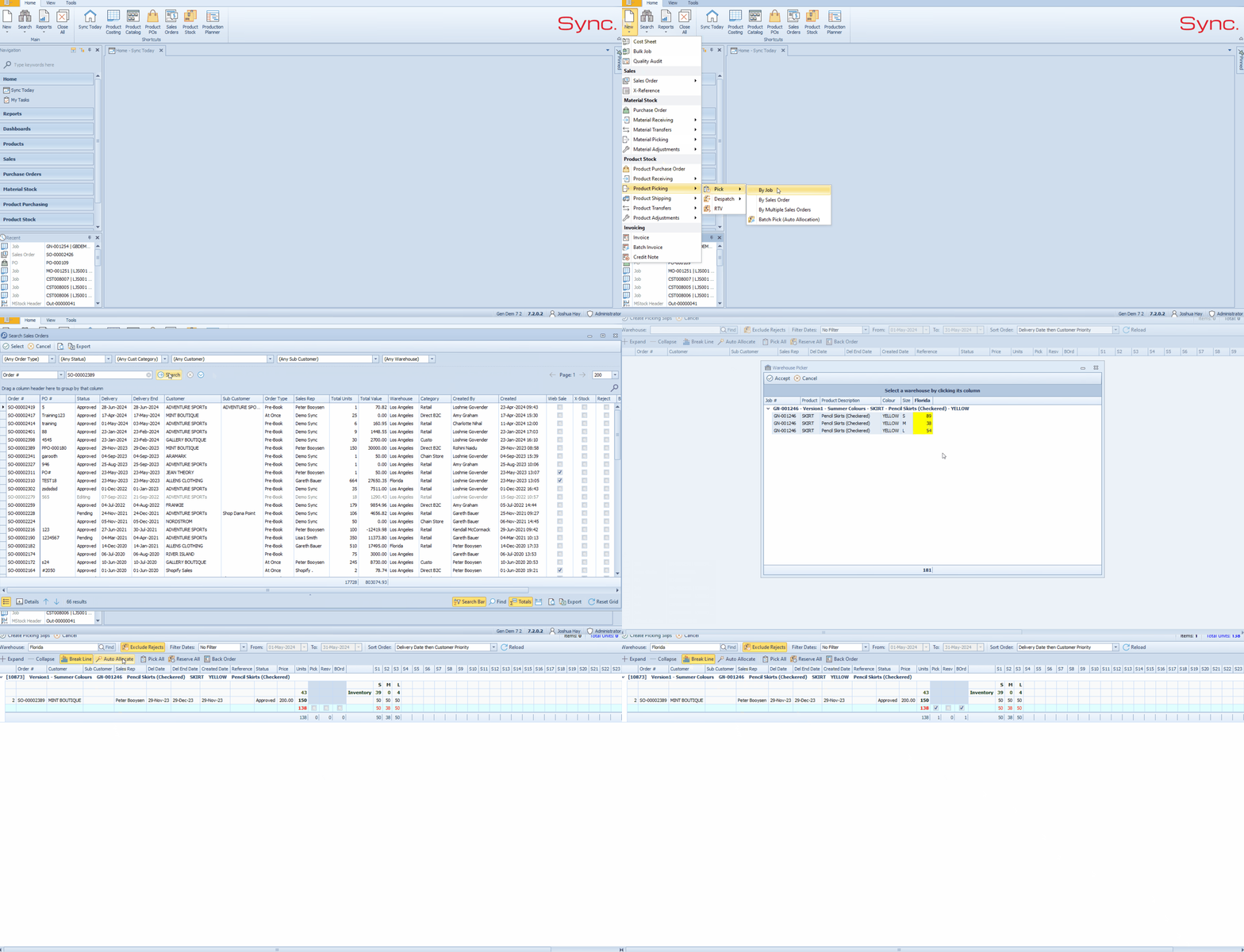
To properly use Break Line with Back Order:
Turn Break Line ON.
Click Auto Allocate.
Review allocated quantities.
Click Back Order.
When “Back Order” is clicked:
Available stock is allocated to the Picking Requisition.
Remaining units are automatically placed on Back Order.
The Back Order checkbox is ticked.
Line statuses update accordingly.
When to Use Break Line
Recommended when:
Customers accept partial deliveries
High SKU / size variant environments (e.g., apparel)
Stock replenishment is frequent
Fast dispatch improves customer satisfaction
Not recommended when:
Full shipment policy is mandatory
Orders must ship complete
Strict compliance requirements exist
Common Mistakes to Avoid
Turning on Break Line without enabling Back Order (can create fulfillment gaps)
Forgetting to click Back Order after Auto Allocate
Misconfiguring Business Rules
Not communicating partial shipment policy to customers
Business Rules
The following business rules control system behavior:
default_break_line_pstock_requisition
- Defaults Break Line setting to ON.
- Reduces manual user error.
automatic_back_order_creation
- Automatically enables Back Order functionality.
- Insist remaining quantities are properly tracked.
default_back_order_header_action
Determines how the system handles back ordered quantities:
- Option 1: Create a new Sales Order for the back ordered quantity.
- Option 2: Add a new line to the existing Sales Order.
This rule depends on business preference for order tracking and reporting.