
TABLE OF CONTENTS
- Overview
- What Is a Back Order?
- Requirements for Back Orders
- How Back Order Works
- Interaction Between Break Line and Back Order
- Warehouse & Operational Impact
- Back Order Line Creation Options
- Business Rules
Overview
The Back Order functionality allows the system to manage situations where there is insufficient stock to fully fulfill a Sales Order, but additional stock is expected in the future.
Instead of delaying the entire order, the system:
Picks available stock
Places the remaining quantity on Back Order
Tracks outstanding quantities for future fulfillment
⚠ Important:
Back Order functionality must be used together with Break Line. Without Break Line enabled, proper partial allocation and tracking cannot occur.
What Is a Back Order?
A Back Order is created when:
Ordered quantity > Available stock
Additional stock is expected
Partial shipment is allowed
The system splits the order into:
Picked (available stock)
Back Ordered (outstanding stock)
Requirements for Back Orders
To successfully create a Back Order:
Break Line must be enabled
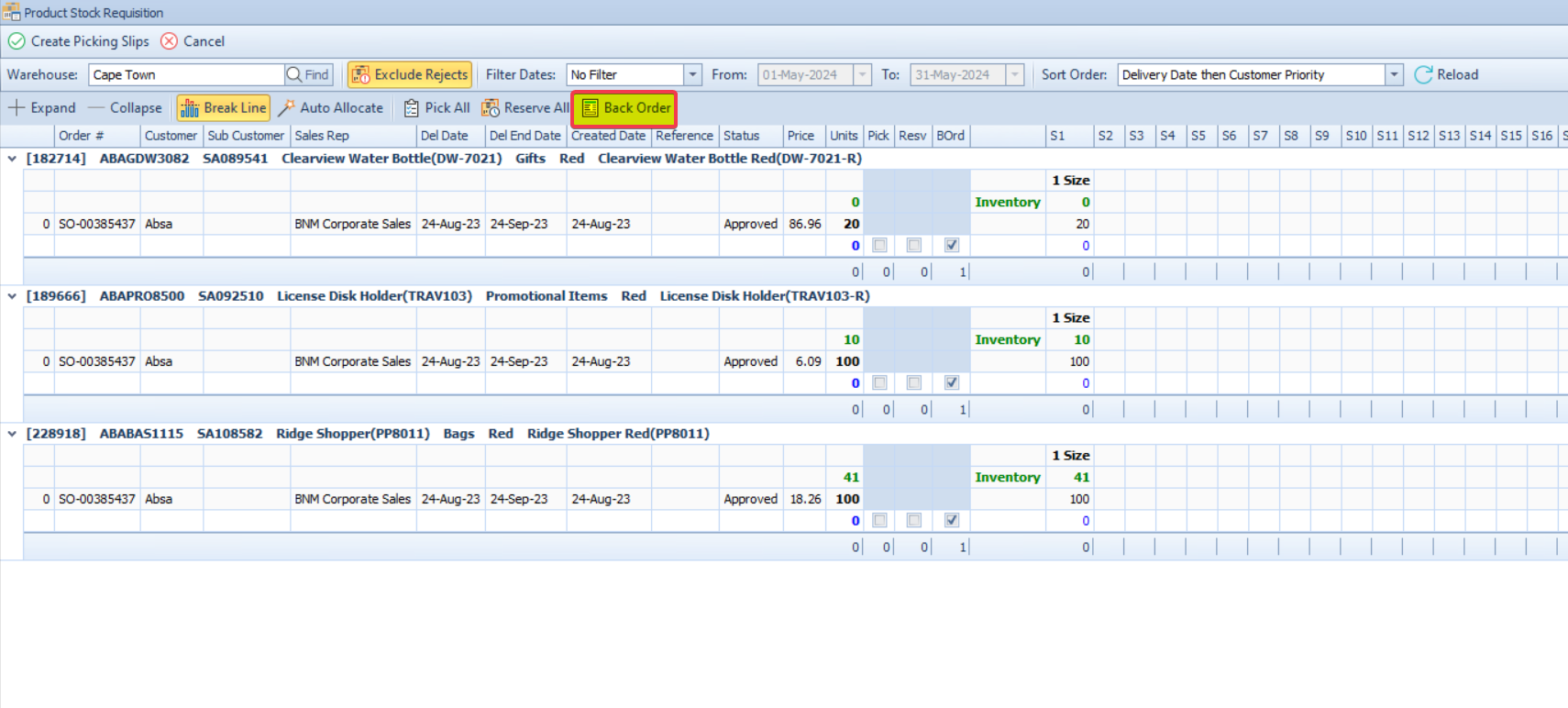
The B Ord (Back Order) checkbox must be ticked
Picking Slips must be created after the above steps
If these steps are not followed correctly, the system will not preserve the outstanding quantity.
How Back Order Works
Best Practice Recommendation
For most businesses that allow partial shipments:
Enable Break Line
Enable Automatic_Back_Order_Creation
Configure
default_back_order_header_creationaccording to business preferenceTrain users to verify B Ord is ticked before creating Picking Slips
Step-by-Step Process
Enable Break Line
Click Auto Allocate
Tick the B Ord checkbox for relevant line items
(If automatic rule is enabled, this may already be ticked)Create Picking Slips
Result
Available quantity is allocated to the Picking Requisition
Remaining quantity is automatically:
Added as a Back Order line
Tracked for future fulfillment
Line statuses are updated accordingly
Example 1: Partial Stock Available
| Item | Ordered | Available | Picked | Back Ordered |
|---|---|---|---|---|
| Cycling Jersey – Size L | 12 | 7 | 7 | 5 |
Outcome:
7 units move to Picking
5 units are placed on Back Order
Back Order line is created
Customer receives partial shipment
Remaining 5 units ship when stock arrives
What Happens If B Ord Is NOT Ticked?
If the B Ord checkbox is not ticked before creating Picking Slips:
The system moves the Sales Order line to Picked
Remaining quantity is not tracked
Further picking against that line is blocked
Example 2: B Ord Not Ticked
| Item | Ordered | Available | Picked | Remaining |
|---|---|---|---|---|
| Bib Shorts – Size M | 10 | 6 | 6 | 4 |
Result:
6 units picked
Line marked picked
4 units are no longer linked to the order
A new Sales Order must be created manually for the remaining 4 units
⚠ This creates:
Extra admin work
Risk of lost sales
Reporting inconsistencies
Interaction Between Break Line and Back Order
| Break Line | B Ord Ticked | Result |
|---|---|---|
| OFF | N/A | Cannot properly create back order |
| ON | NO | Partial pick occurs, line closes, remainder lost |
| ON | YES | Partial pick + remainder placed on back order |
For Back Order functionality to work correctly:
✔ Break Line must be enabled
✔ B Ord must be ticked
Warehouse & Operational Impact
When used correctly, Back Orders:
Prevent over-picking
Ensure accurate stock allocation
Improve customer service
Maintain audit trail of outstanding quantities
Reduce manual intervention
When used incorrectly:
Orders close prematurely
Remaining stock is disconnected from the original order
New orders must be manually created
Reporting inconsistencies occur
Back Order Line Creation Options
When a Back Order is generated, the system can handle it in one of two ways:
Option 1: Add Back Order Line to Same Sales Order
Original Sales Order remains open
New line is added for remaining quantity
All activity stays under one order number
Option 2: Create a New Sales Order
Original order closes for picked quantity
System generates a new Sales Order for back ordered units
Useful for financial or dispatch separation
The behavior is controlled by Business Rules (see below).
Business Rules
Automatic_Back_Order_Creation
Automatically ticks the B Ord checkbox
Reduces user error
Ensures outstanding stock is not lost
If switched OFF:
Users must manually tick the B Ord checkbox
default_back_order_header_creation
Determines how the Back Order is structured:
- Create new Sales Order for back ordered units
or - Add back order line to original Sales Order
This depends on business preferences regarding:
- Financial reporting
- Order tracking
- Customer communication
- Dispatch processes