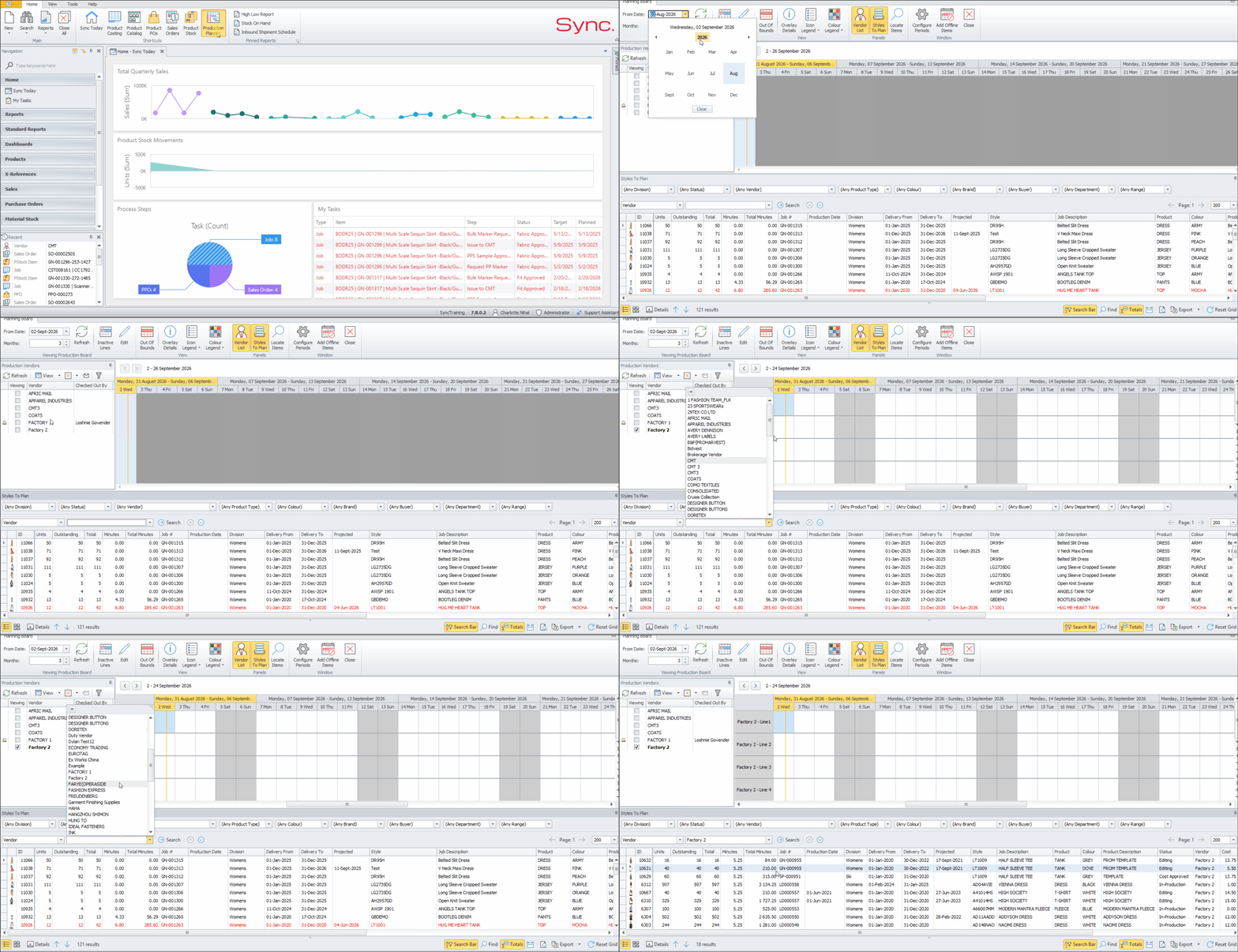
The Sync Production Planning Board (PPB) is a graphical capacity and scenario planning tool designed for garment manufacturing.
It allows users to schedule styles onto factory production lines and calculate the production time required based on the number of operators, line efficiency, Garment Minute Rate (CMT Operations), and units required.
The PPB provides a visual planning environment with drag-and-drop functionality, alerts and critical-path planning, allowing production planners to manage capacity, identify potential constraints and evaluate different production scenarios..
PURPOSE
To provide an overview of the steps required to set up Production Planning and plan styles for production vendors using the Production Planner Module.
KEY BENEFITS
Production Setup: Create CMT Operations and Templates and identify Production Vendors.
Job Preparation: Allocate the required CMT operations and rates to a Job before planning.
Production Planning: Configure vendor periods and plan styles on the Planning Board.
Visibility: View planned styles and access style details directly from the Planning Board.
FOLLOW STEPS BELOW:
1. Admin
1.1 Create CMT Operations
1.2 Create CMT Templates
1.3 Flag the relevant Vendors as Production Vendors
2. Add/Allocate Operations to a Job
2.1 The Job must be ‘Unlocked’
2.2 Open the Job and use the Edit function to add CMT Operations
2.3 In Edit Operations, add the required operations and click ‘Add Operations’
2.4 Add the rate for each operation
2.5 Allocate the operation to the relevant product, then close
2.6 Once the operations have been allocated, the style can be added to the PPB
Example Style: WUH-0340 -c/s -17318
3. Production Planner
3.1 Configuration
3.1.1 Configure Periods per Vendor. Vendors must first be flagged as Production Vendors in Admin.
3.1.2 Set the production lines, working days, time and operators
3.1.3 Add Offline Days, for example Public Holidays
3.2 Planning Board – Adding Styles to the Board
3.2.1 Set the date to ‘Plan From’
3.2.2 Set the number of ‘Months’ that you are planning for
3.2.3 Set the Board to ‘Edit’ to allow styles to be added to the planner
3.2.4 Select the Vendor to plan for
3.2.5 Search for the Job/Style and drag it onto the Board
3.2.6 Split units if required
3.2.7 Once the styles have been planned, click ‘Accept’
4. Navigation / Other
4.1 Styles on the PPB will show as ‘Planning’ on Sync in the top right of the Job
4.2 To view style details while on the Board, double-click the style on the Board to open it
4.3 To go to a specific date or today’s date, right-click on the date above the lines
4.4 Toggle between ‘Styles to Plan’ and ‘Production List’ on the bottom left of the PPB
4.5 ‘Styles to Plan’ can be exported
ADDITIONAL INFO
The Production Planner process requires the relevant Production Vendors to be flagged in Admin and the required CMT Operations to be added and allocated to the Job before the style can be planned on the PPB.
NB. For a Quick Look at the PPB take a look below: