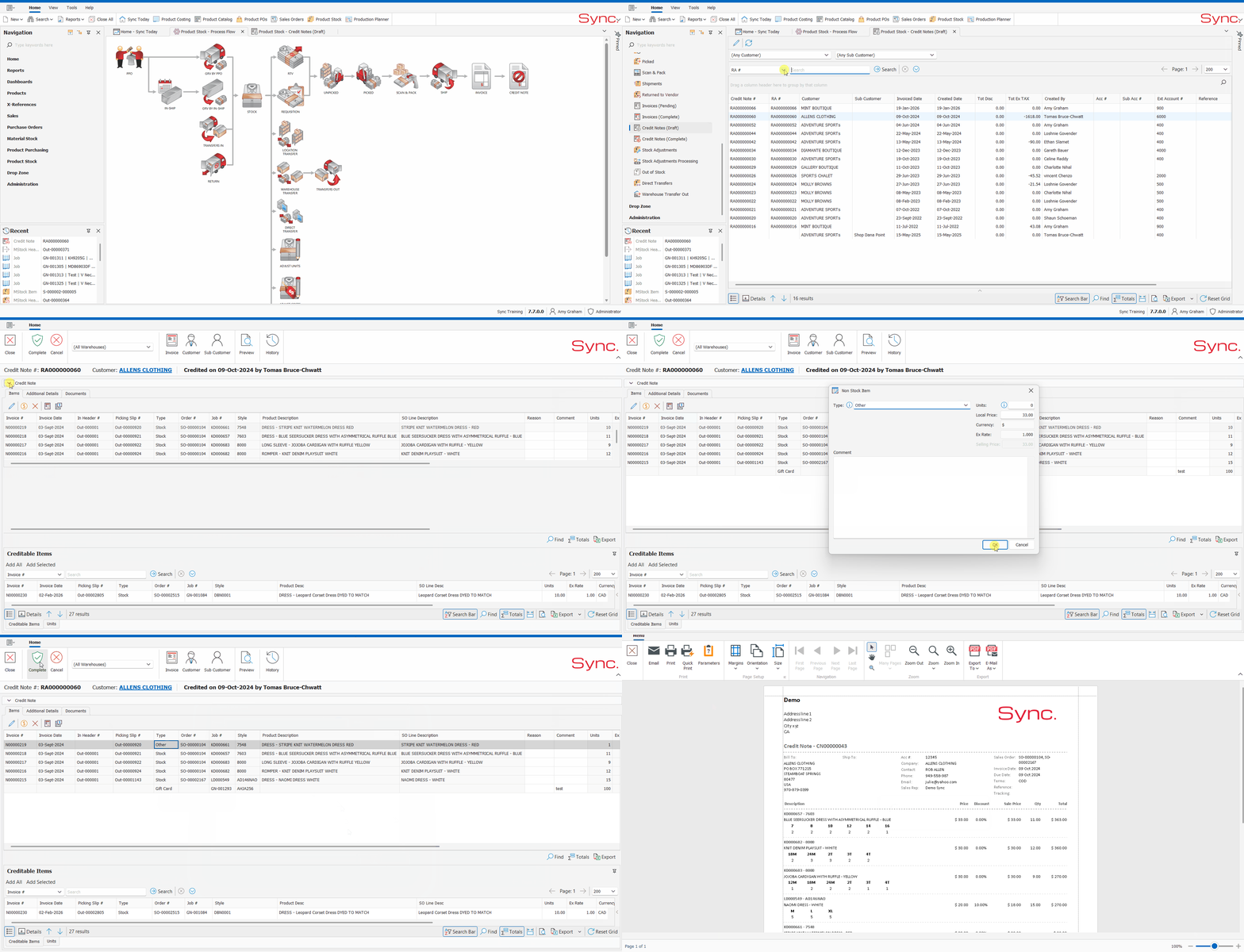
The article outlines the steps how to add nonstock lines to a credit note.
FOLLOW STEPS BELOW:
1. Search and Open the Credit Note (Navigation pain->Product Stock->Credit Notes Drafts OR Search -> Credit Notes)
2. Find the stock line to convert to non-stock.
3. Right click-> Edit.
4. Click the dropdown next to type and choose the appropriate nonstock stock item
5. Check the units & price is correct
6. Click 'Ok' to convert
*Check with your accounts team what the correct non stock type is in your scenario to ensure reporting and account postings are correct.
Why This May Be Required
When stock lines are approved on a credit note, the associated stock quantities are returned to inventory in Sync. However, there are scenarios where a customer refund should be processed without increasing stock levels:
Returned stock is never physically received
In some customer return scenarios, the item is either not shipped back by the customer or is lost in transit and never arrives at the warehouse. Although the customer still requires a refund, approving the stock line on the credit note would incorrectly return the stock to inventory, resulting in overstated stock levels. In these cases, the stock line should be converted to a non-stock line before approval.Stock is 'Blind' receipted by the 3PL
Some third-party logistics providers (3PLs) receipt returned stock in bulk rather than against individual return authorizations. If the blind/bulk receipt is integrated into Sync (WMS integration) as a stock adjustment, approving the stock lines on the related credit notes would cause the same stock to be receipted twice. To prevent duplicate inventory movements and inflated stock levels, the stock line should also be converted to a non-stock line before the credit note is approved.
NB. For a quick tutorial watch below