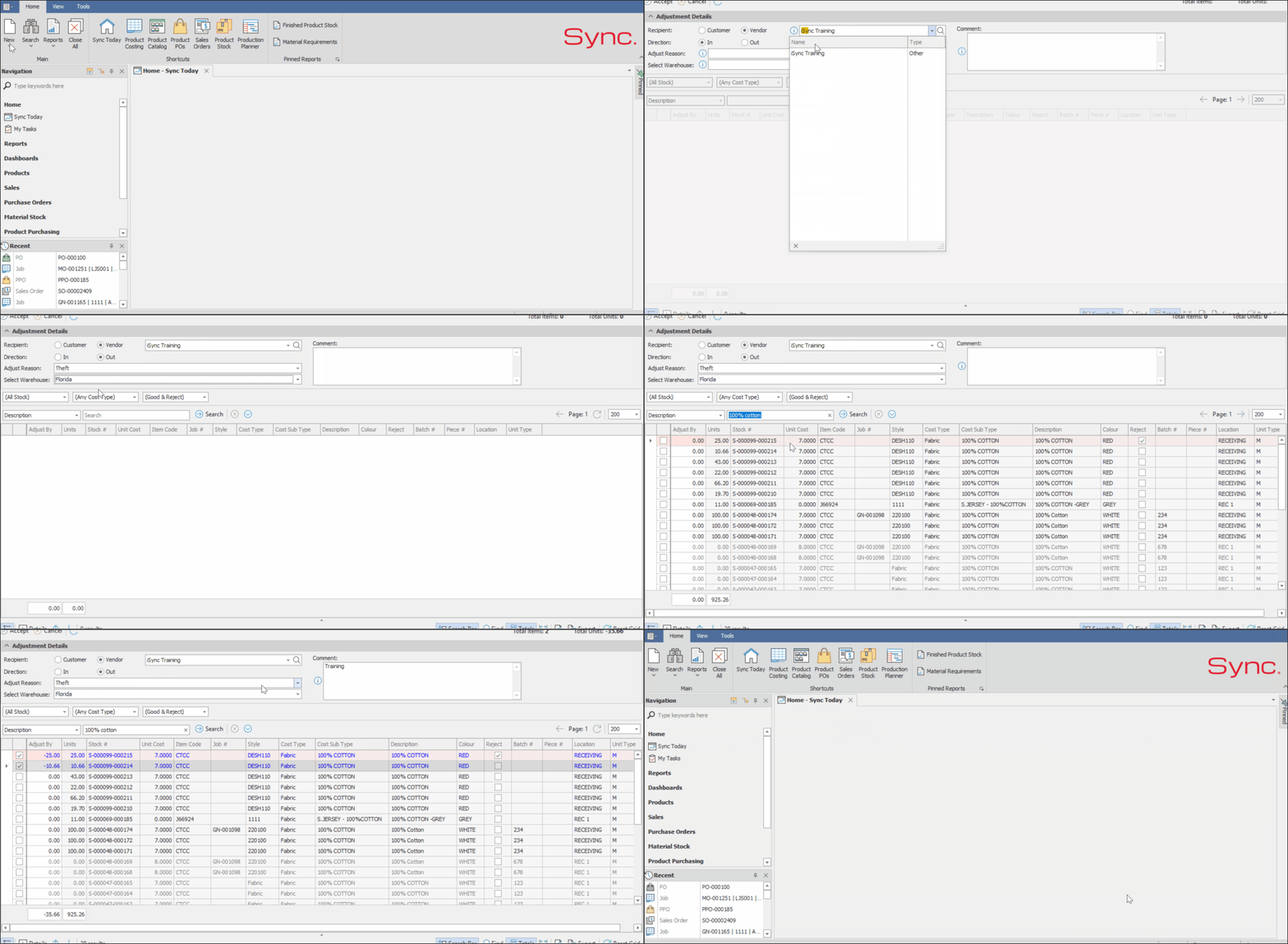
This article outlines the process for managing material stock used for sampling. In Sync, this can be handled using the Stock Adjustment functionality.
When material stock needs to be removed for sampling purposes, a Stock Adjustment Out transaction should be created to reduce the stock accordingly.
To ensure accurate tracking and reporting, a custom stock adjustment reason such as “Sampling” may be required. This can be created by the support team upon request.
PURPOSE
Maintain accurate inventory levels
Stock used for sampling is still consumption, so adjusting it out prevents discrepancies between system stock and physical stock.
Improve visibility and reporting
Using a specific reason like “Sampling” allows you to clearly track how much material is being used for non-production purposes.
Support cost control
Sampling materials still carry a cost. Tracking them separately helps the business understand how much is being spent on development, marketing, or client samples.
Ensure accountability and audit trail
The stock adjustment creates a record of who removed stock, when, and why which is important for internal controls and audits.
FOLLOW STEPS BELOW:
1. From within the Sync Homepage, click on ‘New’
2. Select ‘Material Adjustments’
3. Select ‘Stock Unit Adjustment’
4. Select ‘Recipient’ i.e. ‘Customer’ or ‘Vendor’
5. Select ‘Direction’ i.e. ‘Out’ adjustment
6. Select a ‘Reason’ for the adjustment e.g. Sampling
7. Select the ‘Warehouse’ that the adjustment will be made from
8. If Applicable, apply filters and select a search criteria e.g. Description
9. Capture Search Criteria and Click ‘Search’
10. Capture the ‘Adjust’ by value i.e. Units. Repeat for each stock item that needs to be adjusted
11. Add a ‘Comment’
12. Click ‘Accept’
ADDITIONAL NOTES
Only authorized users should perform stock adjustments
Always capture accurate quantities when adjusting stock
Add comments where necessary for clarity (e.g. sample Style/Job Number)
NB. For a quick tutorial watch below