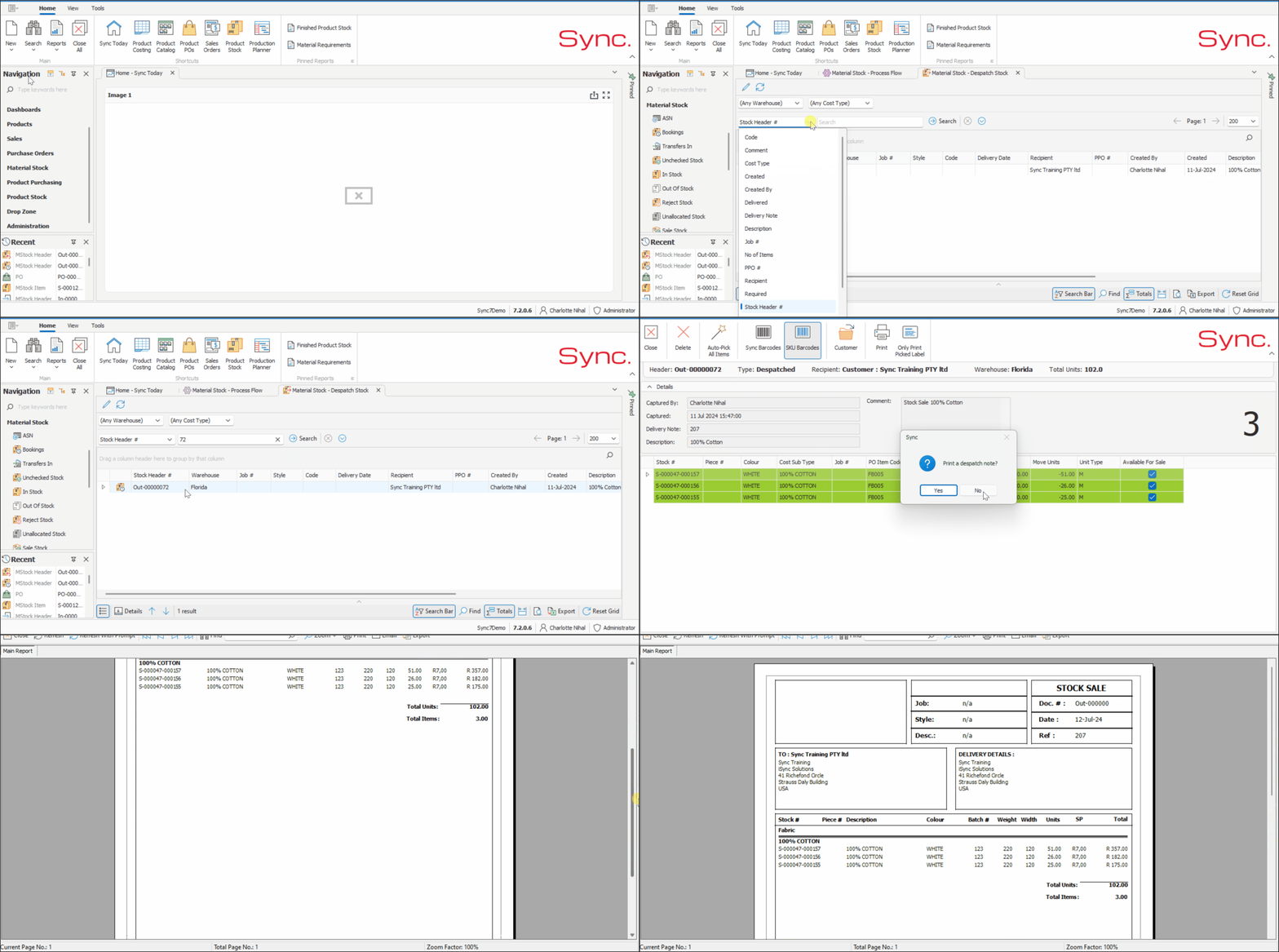
This article outlines the steps to create a ‘Material Stock Sale’. This is the listing of items which need to be picked by the warehouse as per agreement with the end customer purchasing the stock.
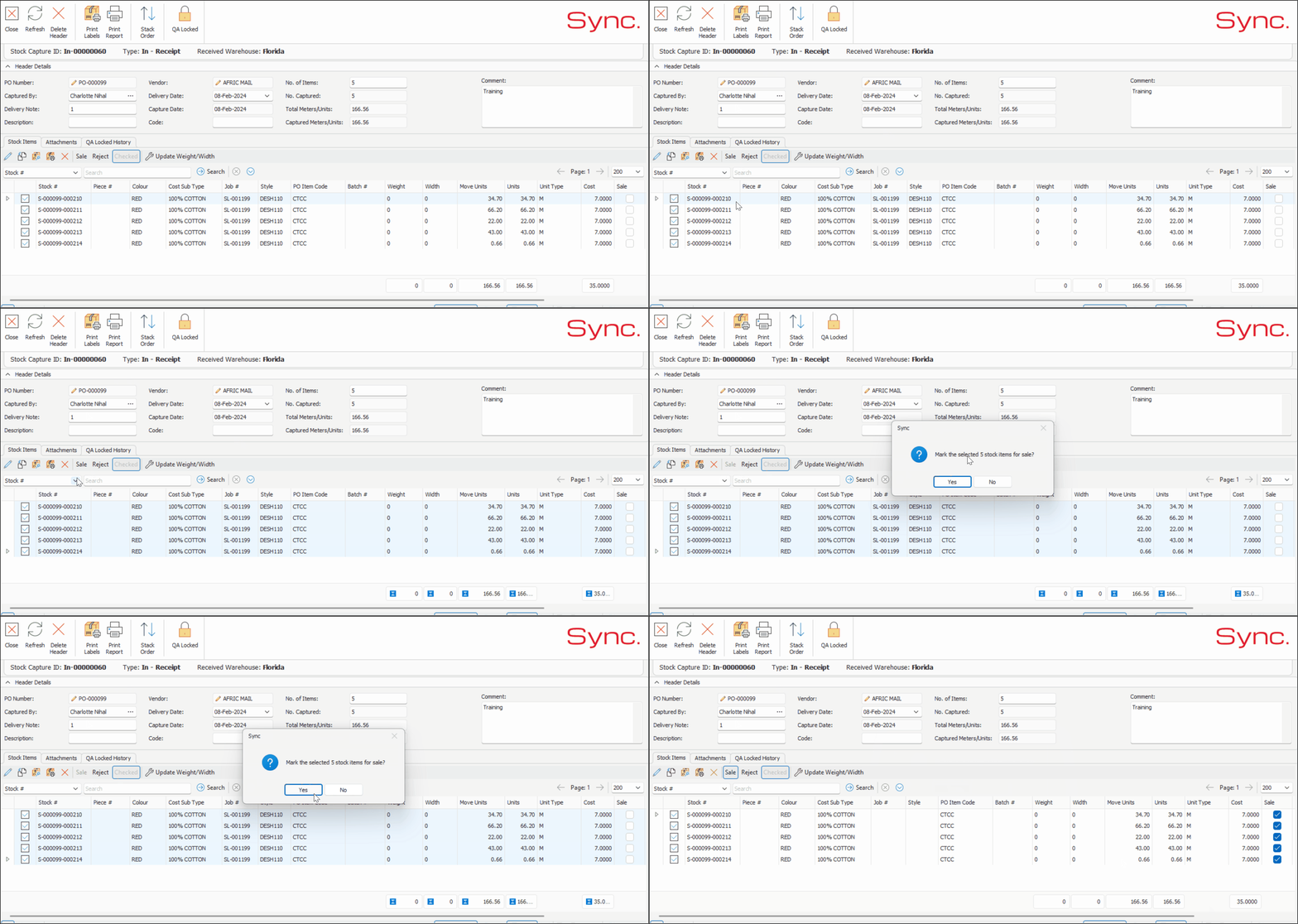
To create a Stock Sale, the stock items must first be flagged as ‘Sale’.
An Invoice is automatically created for the ‘Stock Sale’ after the stock is picked & despatched.

Flagging a Stock item for Sale
1. Search for the stock item's In Header
- Search Stock Headers Or
- Search for the stock item in the In Stock Tab or Search - Stock Items
- Double click to open the stock item then
- Click the folder icon to open the in header
2. From within ‘In header’, multi select the stock items
3. Right click and select ‘Sale’ or click on the word ‘Sale’
43. When prompted, select ‘Yes’ to ‘mark the selected stock items/s as sale’
Create the Stock Sale
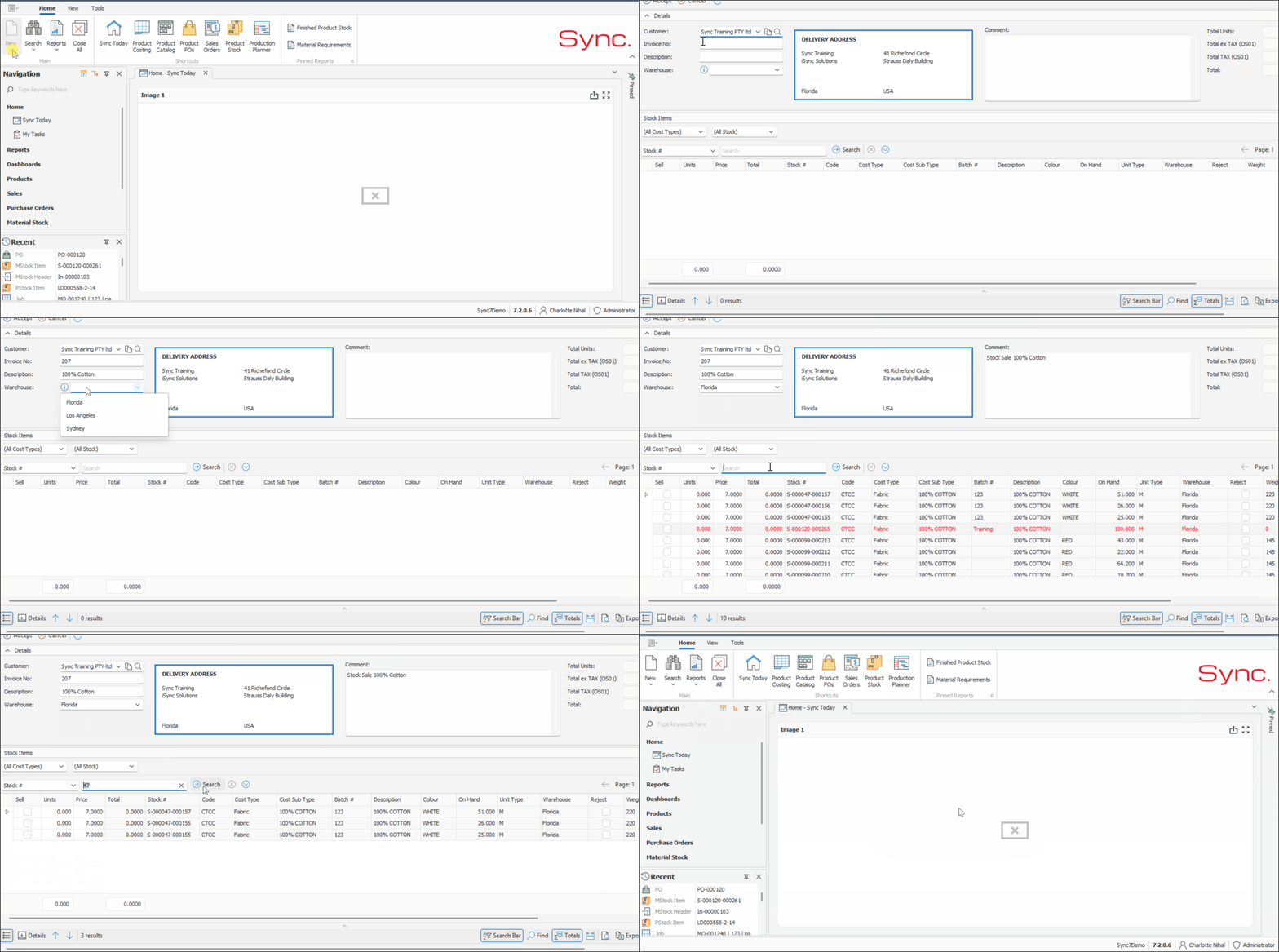
1. From the Sync Toolbar, Click on ‘New’
2. Select ‘Material Picking’
3. Select ‘Stock Sale’
4. Within the ‘Stock Sale Window’ search for and Select the ‘Customer’
5. Capture the Non-Stock ‘Invoice’ Number
6. Capture a ‘Description’ e.g. Fabric Description
7. Select the ‘Warehouse’ that stock is going to be Sold out of
8. Within the ‘Stock Items’ Section, apply filters and enter a Search Criteria e.g. Stock Item #
9. Click ‘Search’
10. Tick/Multi select the ‘Sell’ Block
11. If required, amend the units
12. If required amend the Price to the price at which you have agreed to sell the stock
13. Add a ‘Comment’
14. Click ‘Accept’
Picking the Stock
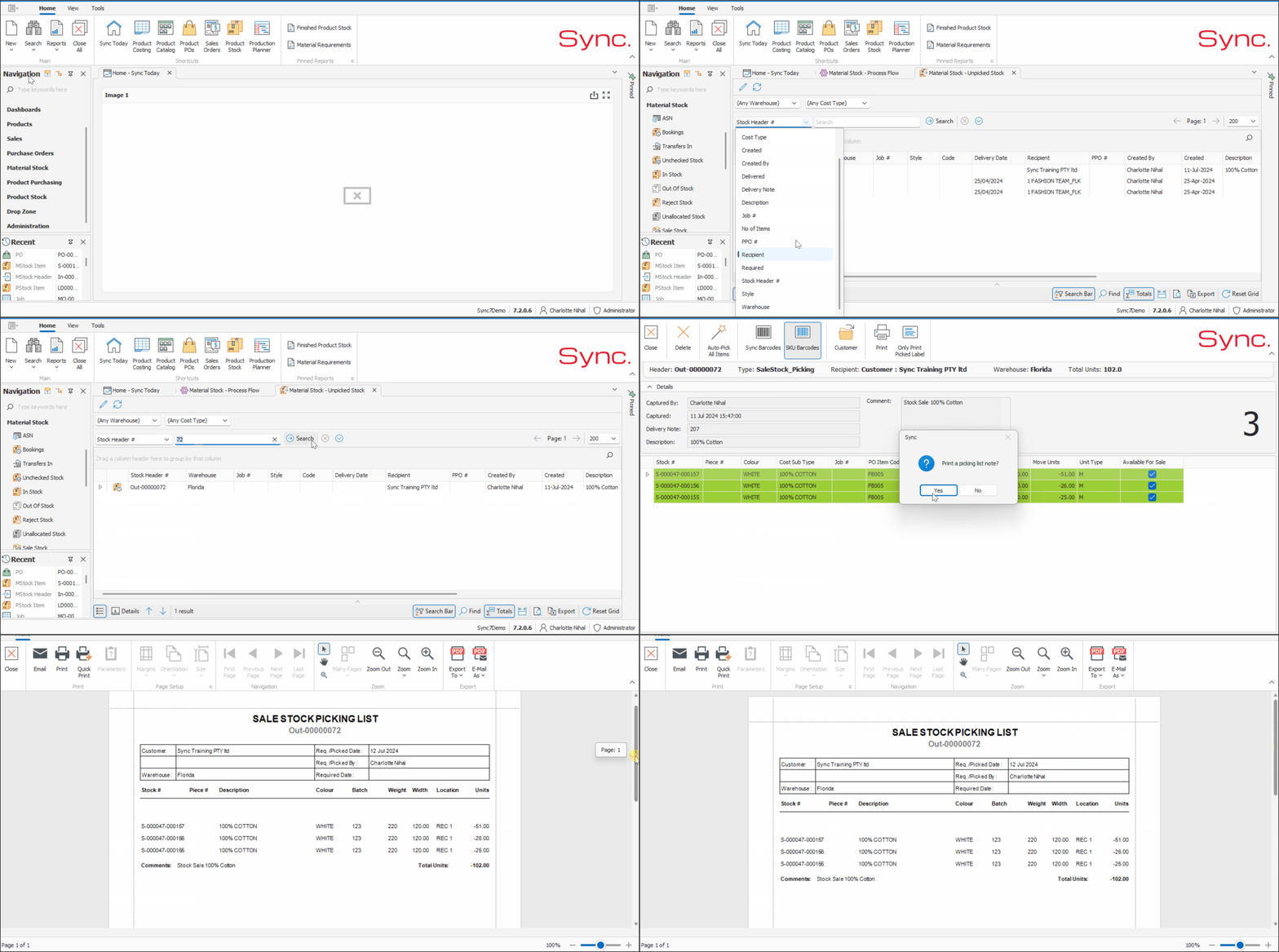
1. From within ‘Navigation’, scroll down and Select ‘Material Stock’
2. Click on ‘Pick’ Or navigate the Unpicked Bin
3. Apply Filters e.g. Warehouse, Cost Type or any applicable filter
4. Capture Search Criteria and Click ‘Search’
5. Double Click to Select the ‘Out header’ for the stock sale
6. Click on ‘Autopick’ or Scan items to complete the picking process
7. When prompted Click ‘Yes’ or ‘No’ to Print a ‘Picking List Note’
Despatching the Stock
1. From within ‘Navigation’, scroll down and Select ‘Material Stock’
2. Click on ‘Pick’
3. Apply Filters e.g. Warehouse, Cost Type or any applicable filter
4. Capture Search Criteria and Click ‘Search’
5. Double Click to Select the ‘Out header’
6. Click on ‘Autopick’ and when prompted Select ‘Yes’ to ‘Pick all Items Now’ or Scan items to complete the despatch process
7. When prompted Click ‘Yes’ or ‘No’ to Print a ‘Despatch Note’
8. After this has been completed, an Invoice will be generated for the Stock Sale. The invoice number will be displayed against the Stock Move Header that is created against the Stock Item.