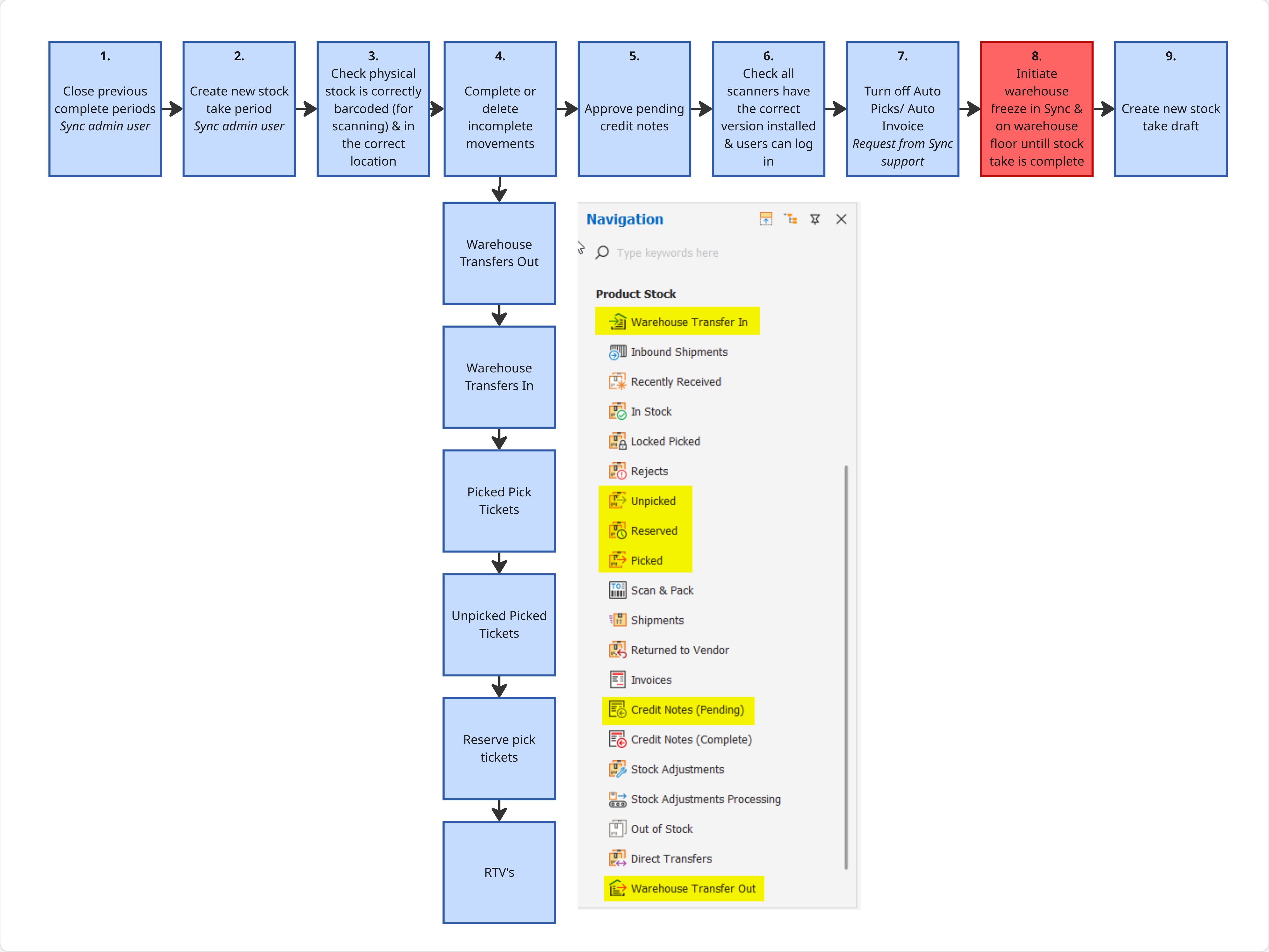
This article outlines all the steps that must take place before a Finished Goods Stock Take Draft is created. This will reduce the occurrence of unnecessary data issue when trying to initiate or complete the stock take.
FOLLOW STEPS BELOW:
1. Close all previous Stock Take Periods that you will no longer be creating stock takes for
2. Create the new Stock Take Period for the count you are about to do
3. Check all physical stock has the correct barcode label attached and is in the correct location in your warehouse
4. Complete or delete any incomplete movements:
- Despatch or delete on Warehouse Transfers Out
- Receive or delete Warehouse Transfers In
- Despatch or delete any picked pick ticket
- Pick or delete unpicked picked tickets
- Pick or delete Reserve pick tickets
- Despatch or cancel any RTV's (Return to Vendor)
5. Approve or delete any Pending Credit notes
6. If using scanners ensure all scanners have the latest Sync version installed & users can successfully log in
7. Request Sync support to disable any Auto Pick/ Auto invoice procedures running for the duration of your stock take
8. Initiate a warehouse freeze for the duration of your stock take - both on the warehouse floor and in Sync
9. Create the new stock take on the chosen users Sync account
Once all the above steps have been completed you can begin your count.
IMPORTANT NOTES:
1. Only the Sync user account which creates the Stock Take in Sync Desktop can open, complete and view the progress thereof
2. Do not click 'Confirm Stock Take' unless you are 100% certain all stock in all locations has been scanned as no further edits will be possible
3. Do not mark Stock Take Period as 'Complete' in Sync admin unless you no longer need to add any further stock takes