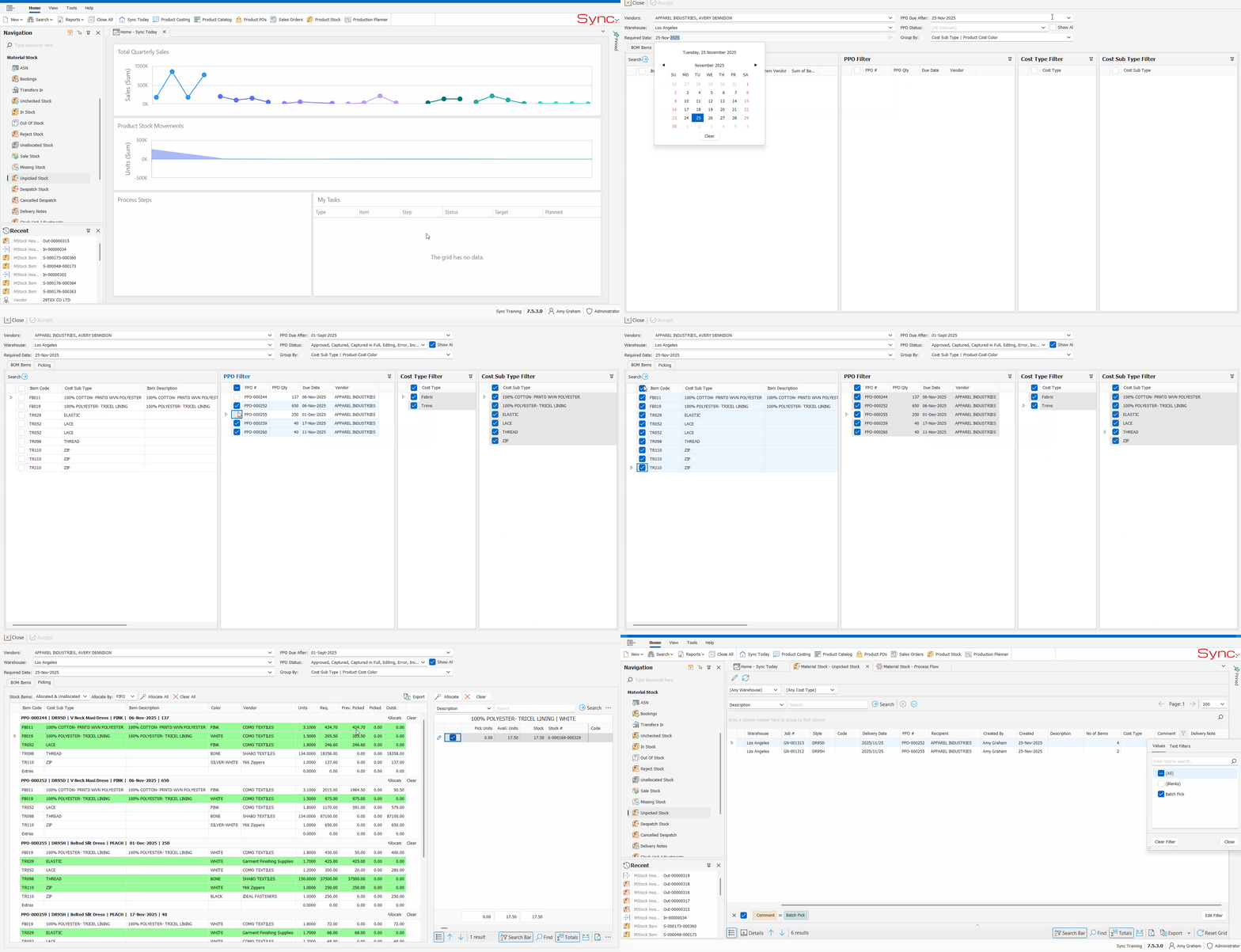
This article outlines the steps required to create a material stock batch picking requisition on Sync Desktop.
This function may be used when an instruction is required to pick stock across more than one Product Purchase Order or Vendor (PPO) from the raw material warehouse.
KEY BENEFITS
- Enables stock picking for multiple PPOs in a single process.
- Allows for tracking of consumed stock at the PPO level.
- Automatically calculates requirements across selected PPO's.
- Eliminates the need to print job requirements reporting and manually calculate picking requirements.
- Supports FIFO or LIFO automatic picking.
- Provides flexibility to allocate stock automatically or manually override.
- Supports picking of both allocated and unallocated items
- Creates one pick ticket per PPO on completion.
- Identifies requirements which can be fully picked in green.
- Identifies requirements which can be partially picked in yellow.
NOTES
- Business rule for picking by PPO must be enabled: results in a change to Picking by PPO and no longer by JOB.
- Prevents picking on jobs which do not yet have a PPO.
- Optimized for picking of items in the Job BOM
- Batch picking is not yet optimized for Sub Costings/ Trims by Size. Pick sized trims separately (Extra's).
- V7.5.3 and later:
- can select any PPO status (not limited to status flagged as 'Outstanding')
- requires Cost Type to be flagged as fCost=True
- can pick across multiple vendors at once
- visibility of previous batch pick units (accounted for in outstanding requirement)
FOLLOW STEPS BELOW:
Specify Batch Pick Parameters
1. From the Sync Toolbar, Click on ‘New’-> Material Picking -> Batch Pick
2. Within the ‘Batch Stock Pick Window’, select the following
- Vendor (who the stock is being sent to for production)
- Warehouse (stock warehouse)
- Required Date (stock pick date)
- PPO Due After ( i.e. PPO’s Due after a specific date)
- PPO Status
- Group By
3. Click ‘Search’
Specify PPO'S, Cost Types & Sub Types to pick
4. Within ‘BOM Items’ Tab tick the block next each Job BOM item to be picked
- Multi select by using CTRL or SHIFT on your keyboard
- Select ALL by clicking the Check box next to 'Item Code'
5. Select the PPO's you want to pick for (defaults to selecting all PPO's matching parameters)
6. Select the Cost Types to be picked for the selected PPO's
7. Select the Cost Sub Types to be picked for the selected PPO'S & Cost Types
8. Click on the ‘Picking’ Tab
Pick Stock
*Left pane lists BOM items for selected PPO'S & Cost Sub Types/ Right pane lists available Stock items for the BOM line selected
9. Select to view Allocated & Unallocated Stock/ Only Allocated/ only Unallocated (Defaults to Allocated & Unallocated)
10. Select to Allocate by FIFO (First in First out) or LIFO (Last in First out)
11. Click on ‘Allocate All’ to automatically allocate required units or manually capture the units within the ‘Pick Units’ field in the right pane
12. Move through each BOM line on the left and view stock items selected for picking on the right
13. Override Auto allocation by ticking/ unticking stock items in the right pane
14. View picked/ outstanding units for all BOM items
- Green indicated picked in full
- Yellow indicates partially picked
15. Click Accept to confirm picks
*View your Pick tickets in the Material Stock -> Unpicked Bin (Search or filter by Comment -> Batch Pick)
NB. For a quick tutorial watch below
ADDITIONAL FUNCTIONALITY
- To pick stock items which are not costed into the Job BOM click 'Extra's' and search for required items (Role permissions apply)
- Click 'Clear'/ 'Clear ALL' to undo ALL specified stock picks (this cannot be undone)
- Click Export on the top right of the left pane for report export of BOM line picked detail
- Click Export on the bottom right of the right pane for an excel/ word document of stock items displayed
- Click Search Bar on the bottom right to hide or show the Stock item search bar
- Click 'Find' on the bottom right to search by specific text
- Click 'Totals' on the bottom right to hide/ show total for Picked Units. Available Units & Stock