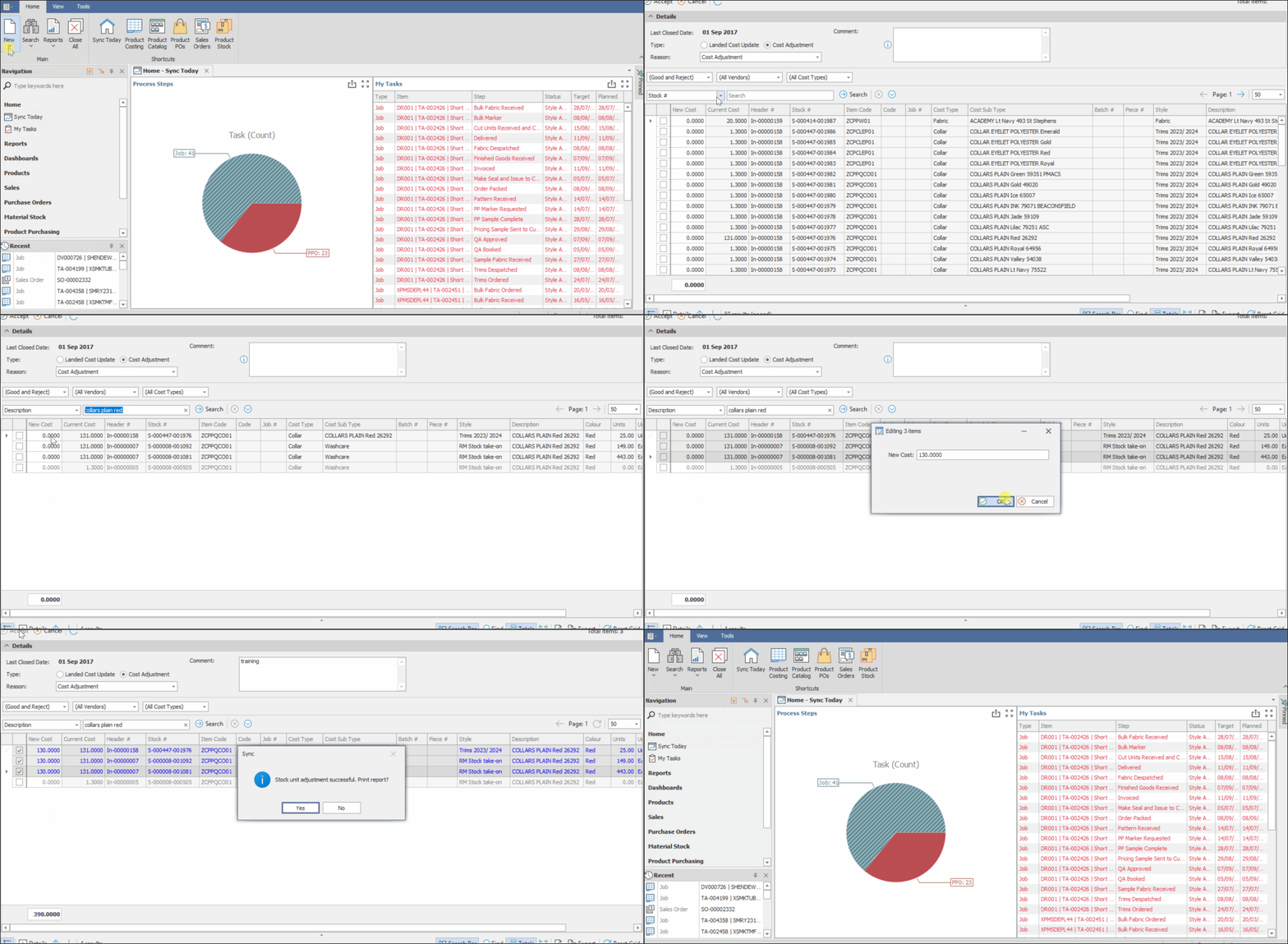
The article outlines the steps to complete a Stock Cost Adjustment. A stock cost adjustment enables you to increase or decrease the value of stock items.
This function is also used to complete a ‘Landed Cost Adjustment’.
Landed cost adjustment is permission based and should be used with caution. This will update the current stock cost, future movements & ALL movements in the past up until the last Closing Date set.
FOLLOW STEPS BELOW:
1. From within the Sync Homepage, click on ‘New’
2. Select ‘Material Adjustments’
3. Select ‘Stock Cost Adjustment’
4. Select ‘Type’ i.e. ‘Landed Cost Update’ or ‘Cost Adjustment’
5. If Applicable, apply filters and select a search criteria e.g. Description
6. Capture Search Criteria and Click ‘Search’
7. If more than 1 stock item needs to be updated, multi select stock items
8. Right Click and Select ‘Set Values’
9. Capture ‘New Cost’
10. Click ‘Ok’
11. Add a ‘Comment’
12. Click ‘Accept’
13. When prompted, select ‘Yes’ or ‘No’ to print an Adjustment Report
ADDITIONAL NOTES
The current cost column within the ‘Adjust Material Stock Costs’ Window will always display your local cost.
NB. For a quick tutorial watch below