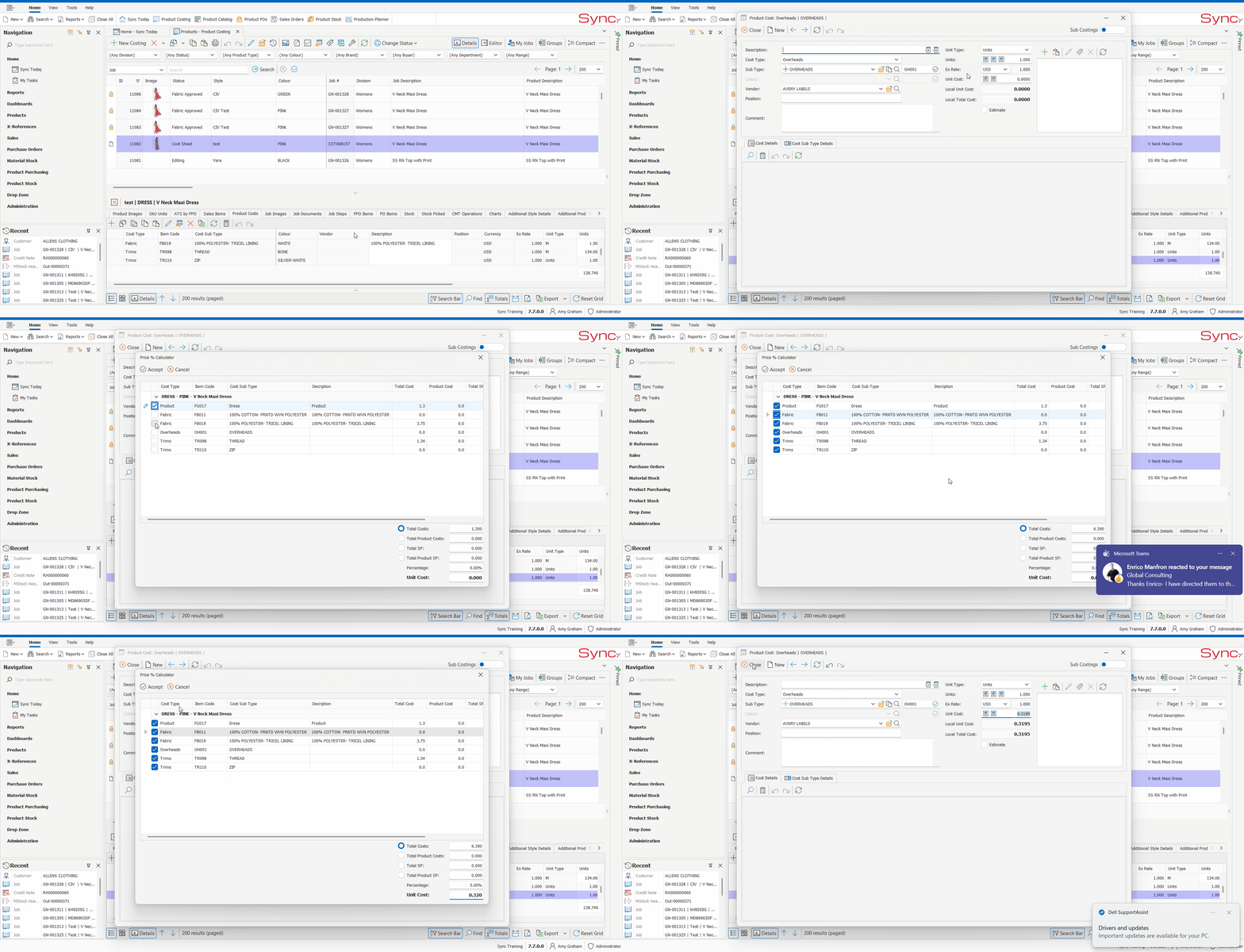
The article outlines the steps to use the price % calculator
FOLLOW STEPS BELOW:
- Within the Job/Style, Click on the ‘Product Cost’ Tab
- Add the required cost e.g. Duty if not already added
- Within the Product Cost, navigate into the ‘Unit Cost’ Field
- Click on the Price % Calculator
- Select the item/costs you care calculating the cost against
- Choose the cost that you would like the % to be applied to- Total cost/ Product costs/SP
- Capture the % that you need to calculate within the ‘Percentage’ Field
- Click ‘Accept’, this will then automatically calculate the unit cost
- Click ‘Ok’ to close
Tip:
Right click or use SHIFT/CRTL on your keyboard to batch select multiple cost lines at one time.
NB. For a quick tutorial watch below