The article outlines the steps to create a Product Stock Return to Vendor. Return to Vendor (RTV) is the return of received stock to the vendor. In practice the most common use of a RTV's is for correcting GRV's.
. This can be done for various reasons:
- receipting error (over receipt)
- receipted stock is found to be damaged
- receipted stock is found to be incorrect items
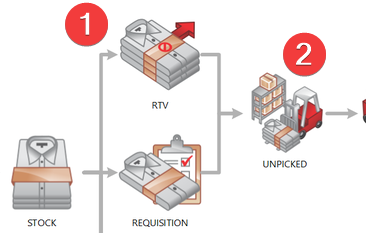
Full RTV is a 2-step process:
1. Create the RTV
2. Pick the RTV
FOLLOW STEPS BELOW:
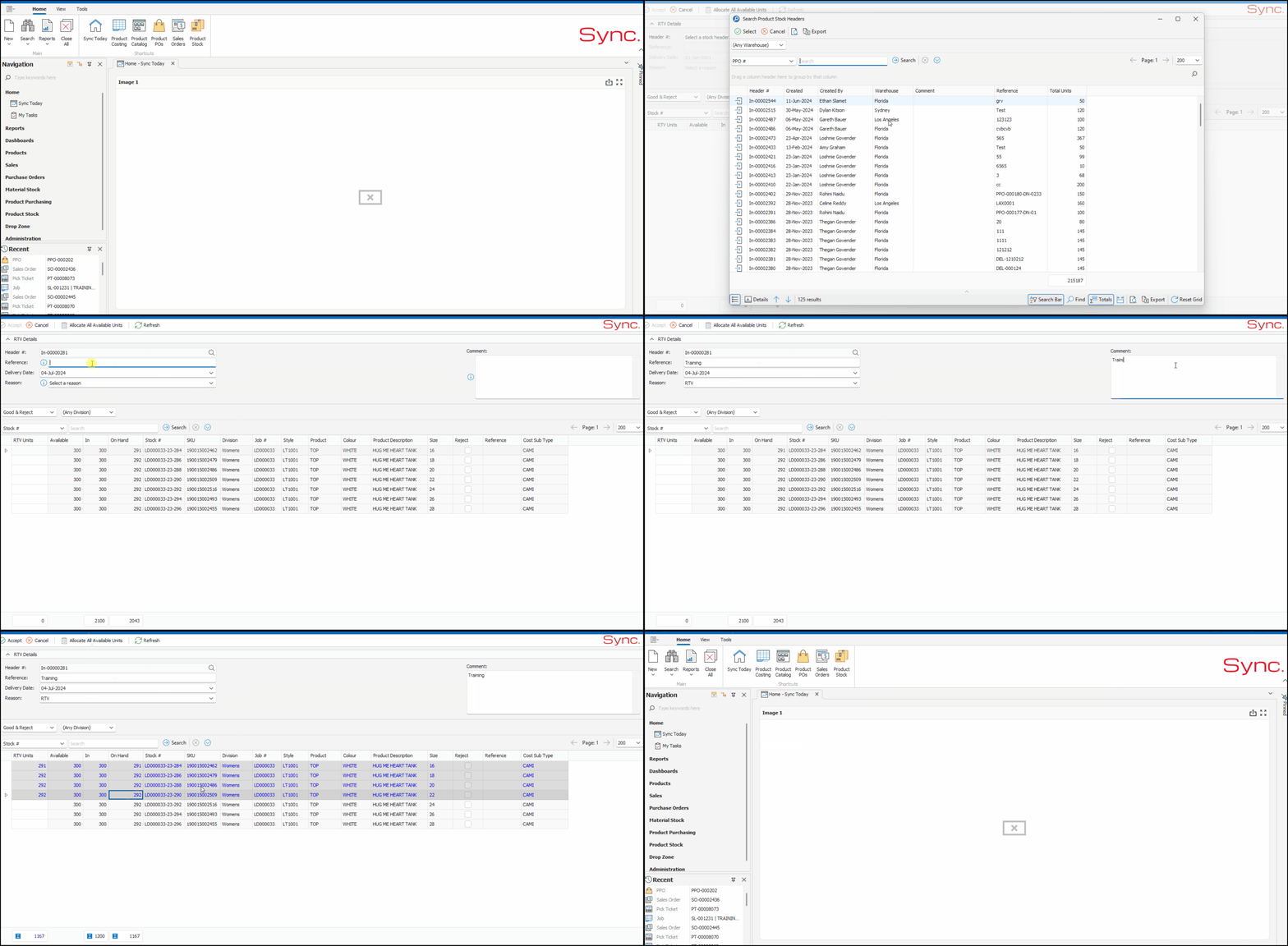
1. From the Sync Homepage, Click on ‘New’
2. Select ‘Product Picking’
3. Select ‘RTV’
4. Select Product Stock Header
5. Capture 'Reference'
6. Capture 'Delivery Date'
7. Capture 'Reason'
8. Capture a Comment
9. If required, change ‘Page Count’
10. Multi Select Stock Items and Tap your Spacebar. This will select all items
11. Click ‘Accept’
NEXT STEPS
NOTES:
- The stock must be GRV'd (Received) into Sync before the RTV can be created.
- RTV's can only be created when the stock is in it's initial receipt warehouse. Move the stock back to the correct warehouse before creating the RTV
- RTV cannot be processed for a stock item with zero cost
NB. For a quick tutorial watch below