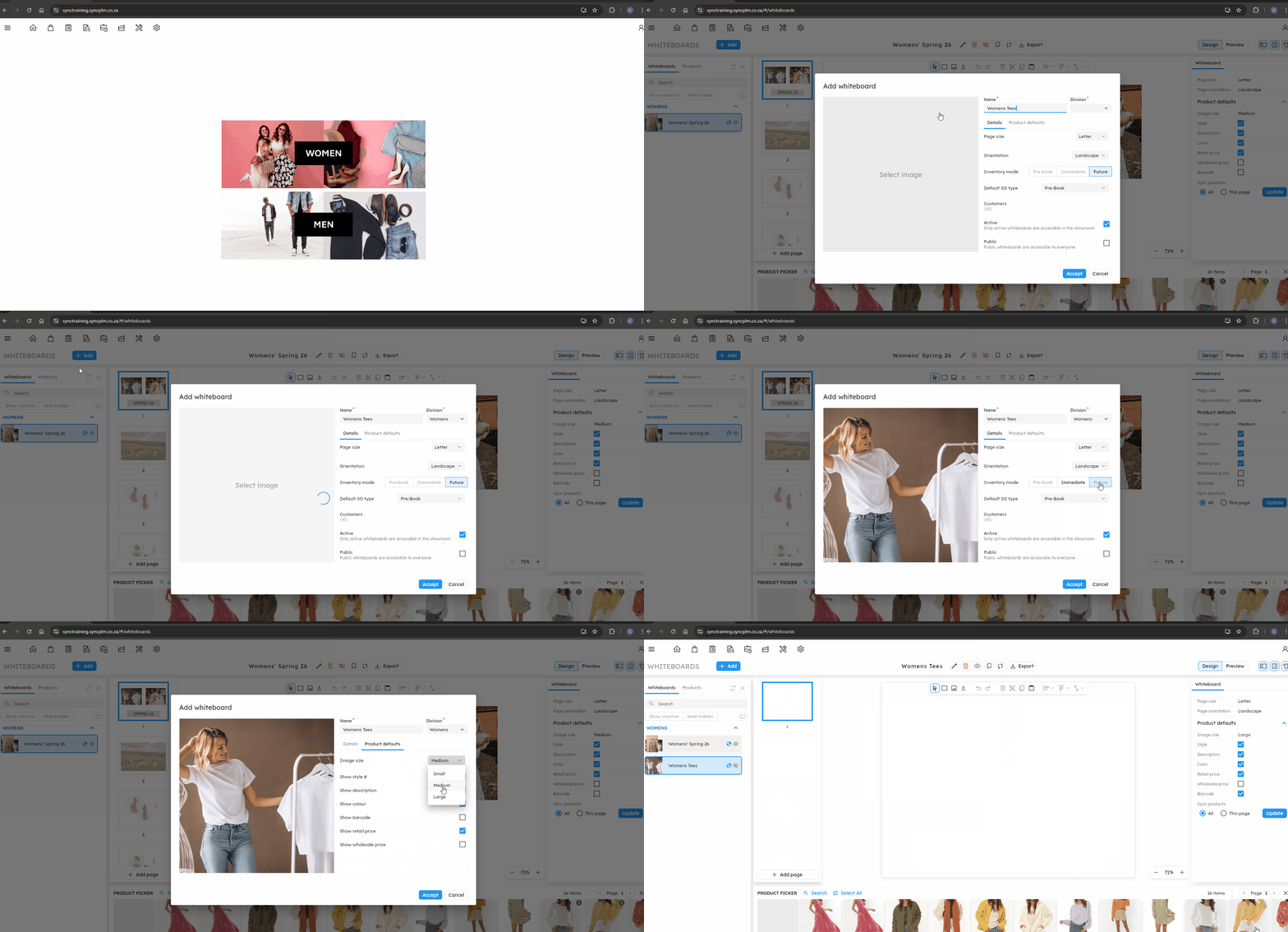
The article outlines the steps to create a new Whiteboard in Sync B2B.
FOLLOW STEPS BELOW:
1. Click on the settings icon then Whiteboards
2. Click Add
3. Enter a name for the whiteboard
4. Select the division to link to this whiteboard
5. Set the visibile image for the whiteboard
5. Set the details of the whiteboard (such as page size, orientation and inventory mode)
6. Specify if Active
7. Specify if Public
8. Set the product defaults (such as image size and whether the style number is visible or not)
9. Click accept
14. Carry on to add any design elements & products
NB. For a quick tutorial watch below