
The article outlines the process to conducting a Product Stock Take using Sync ERP in conjunction with the Sync Scanner App.
PURPOSE
The purpose of this process is to provide a structured and controlled method for conducting product stock takes within Sync, ensuring that physical stock quantities accurately align with system records. This process helps maintain inventory integrity, improve operational efficiency, and support accurate reporting.
KEY BENEFITS
- Ensures accurate and reliable inventory records
- Reduces stock variances and reconciliation errors
- Improves warehouse control and accountability
- Allows stock takes to be performed in manageable sections
- Provides real-time visibility through the Sync Scanner App
FOLLOW THE PROCESS BELOW:
1. Schedule a New Stock Take Period on Sync
- Click on ‘Admin Portal’
- Within ‘Navigation’ Search ‘Stock Takes’
- Click on the ‘Add’ icon i.e. Green +
- Capture a ‘Description’ and ‘Start Date’
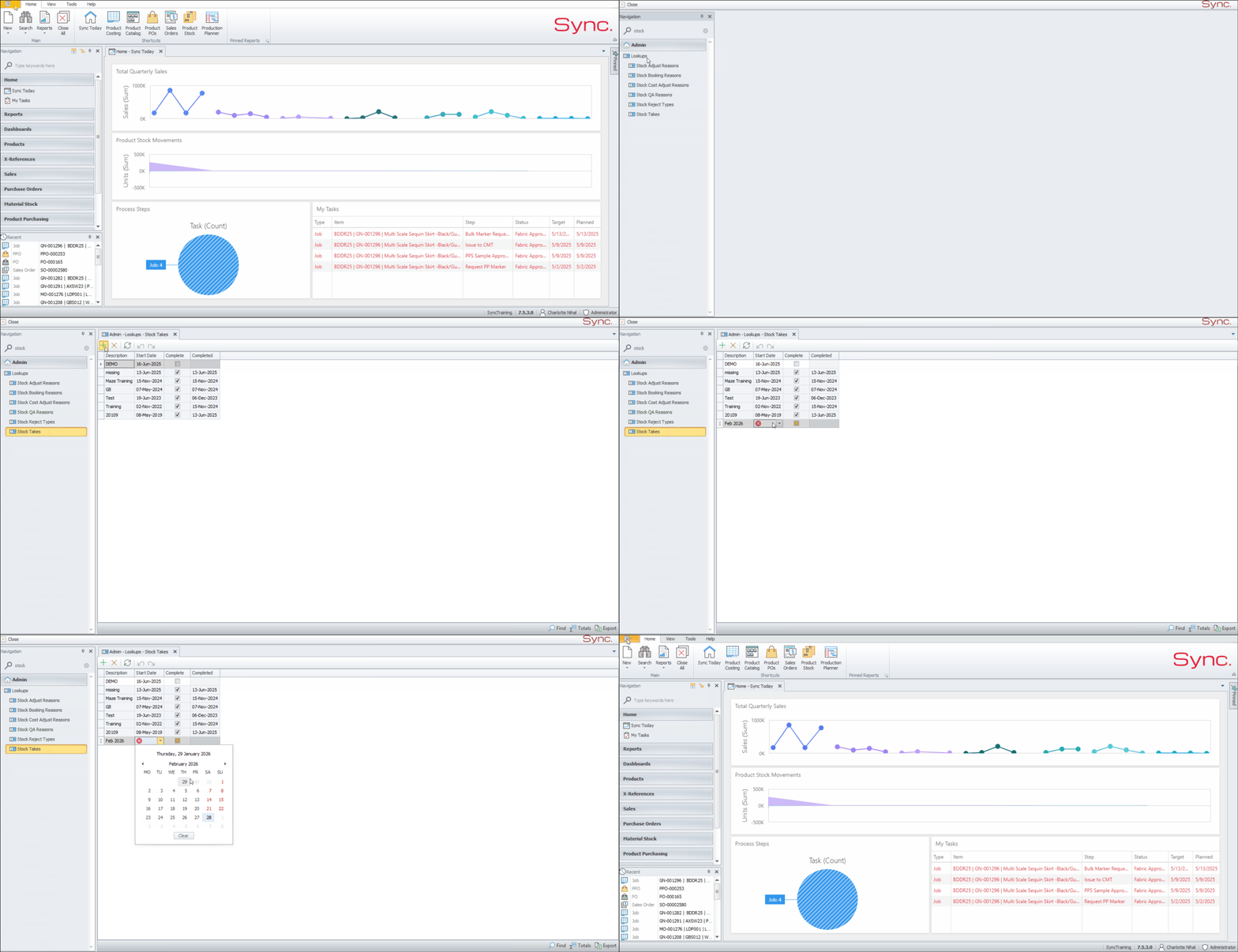
Once the stock take period has been created, this must be internally communicated with users that are going to be involved in the stock take process.
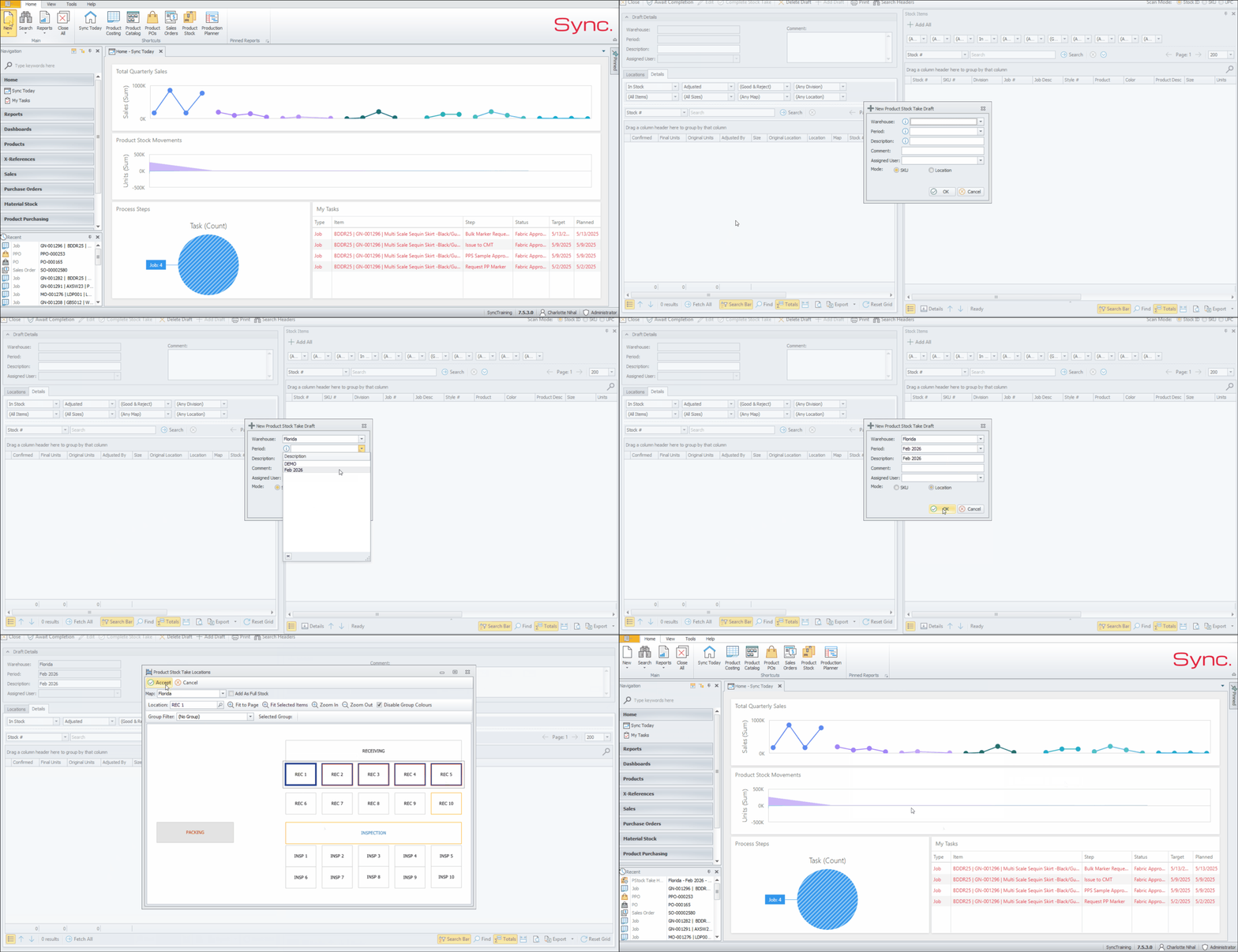
2. Create a New ‘Product Stock Take Draft’ on Sync
- Click on ‘New’
- Scroll to ‘Product Adjustments’
- Select ‘Stock Take Draft’
- Complete the ‘New Product Stock Take Draft’ Window
- Select Warehouse
- Select ‘Period’ i.e. The period you created above
- Capture ‘Description’, this should identify the area being counted
- Set the ‘Mode’ to ‘Location’ or 'SKU'
NB, If you don’t want to create the Product stock take by location then the SKU option must be selected. When selecting the SKU option you may still create smaller stock takes for SKU's by 'Department' or 'Division'
- In the popup window, click and drag to select the section of the warehouse to be counted. NB, The stock take can be set up in portions to simplify the stock take process.
- Click ‘Accept’ once the locations that are going to be added to the stock take are selected.
- Close the Stock Take Window.
- When Prompted, click ‘Yes’ to Close the Window
Users can then access the stock take from the scanner app.
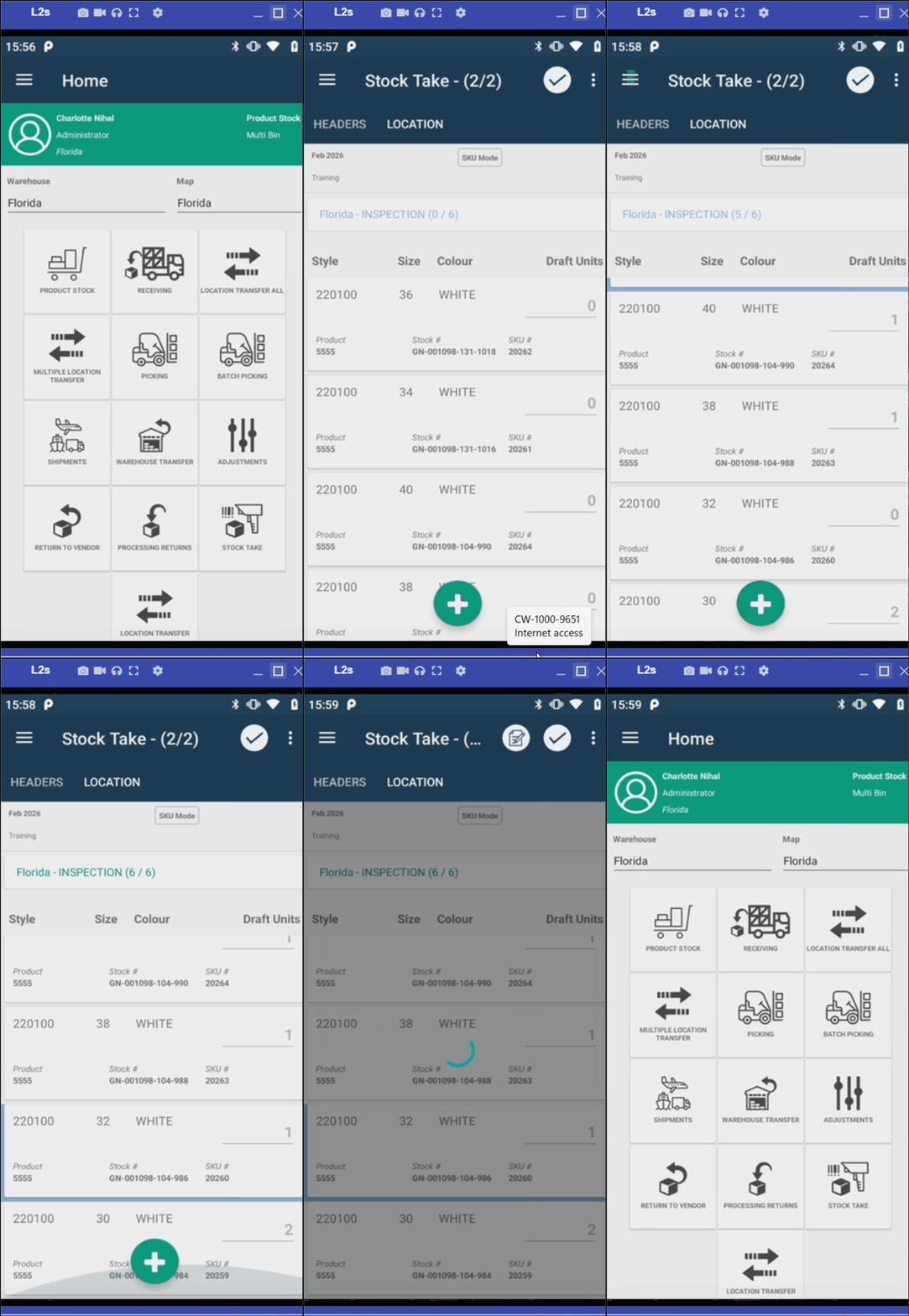
3. Commence with the Stock Take on the Scanner
- TAP the Stock Take Icon on the Sync Scanner Home screen
- Search for and Select the relevant Stock Take Header
- Tap within the ‘Select a Location’ Field or
- Scan Product Stock Items or manually capture the units
- Repeat this process for all locations
- Tap the ‘Tick’ icon on the top right corner once all locations are completed,
- Click the check icon at the top right to set the stock take status to ‘Await Completion’,
- Click ‘Yes’ to Confirm.
- Click 'Back' on the scanner to go back to the Home Screen of the App
NB, The stock take may be completed on the app, but it is advisable to check the stock take on Sync Desktop and then Complete.
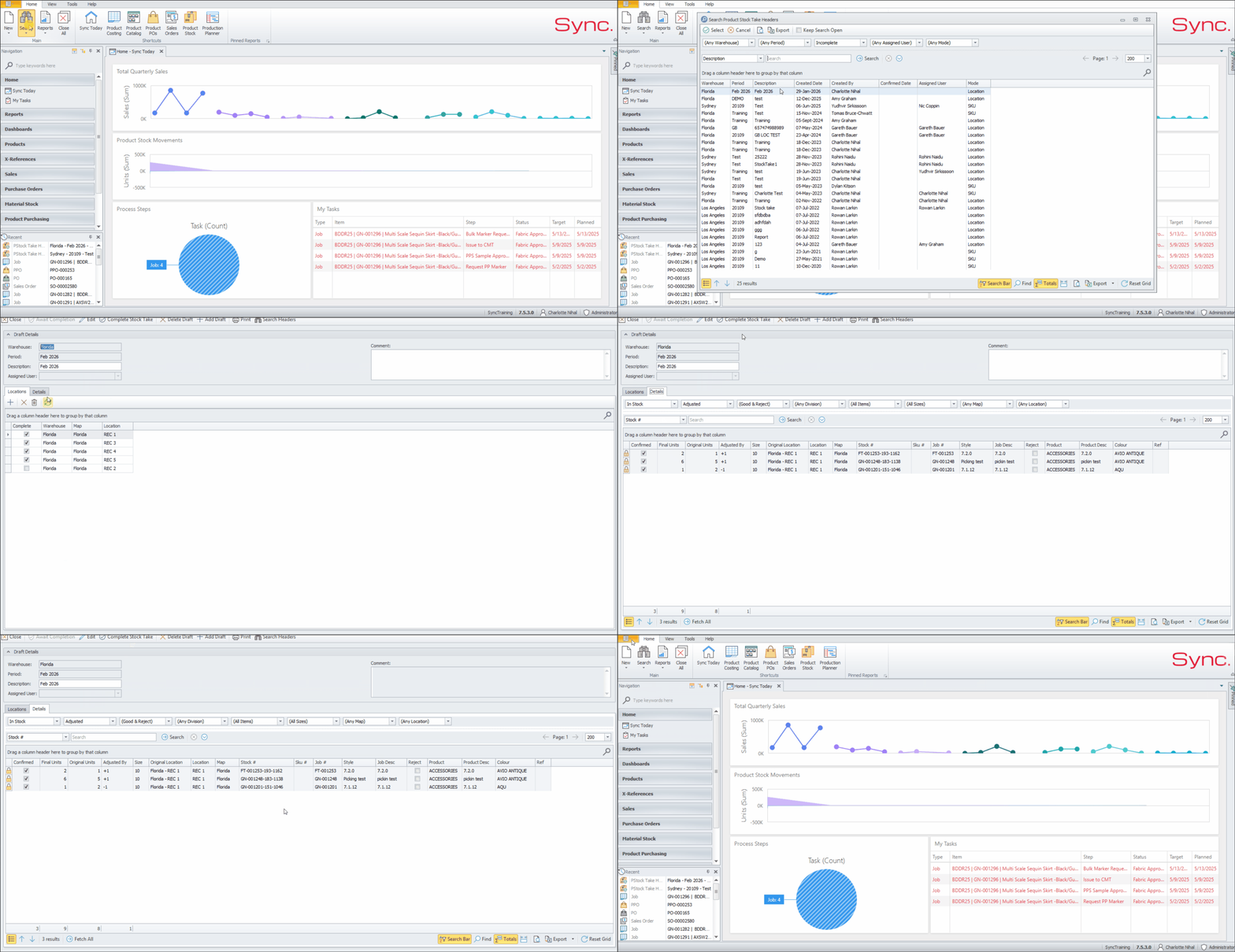
4. Complete the Product Stock Take on Sync
- Click on ‘Search’
- Select ‘Product Stock Takes’
- Select the Product Stock Take to Review. Note that this will show ‘Completed’ locations
- Review the original and adjusted units within the ‘Locations’ tab
- Click on ‘Complete Stock Take’
- When prompted, click 'Yes' to complete stock take
5. Complete the Stock Take Period on Sync
- Click on ‘Admin Portal’
- Within ‘Navigation’ Search ‘Stock Takes’
- Tick ‘Complete’
ADDITIONAL INFO
- To simplify the stock take process, create multiple smaller stock takes for specific locations
- Ensure all pending pick tickets are either completed or cancelled prior to starting.
- A Stock take cannot commence if there are pending pick tickets.
- If you have created multiple stock takes for the same period, you may complete the stock take period once all stock takes are completed.