
This article explains how to name image files so Sync Studio’s Auto Link can match them to the right Jobs and Job Products.
TABLE OF CONTENTS
How Auto Link reads a file name
Auto Link splits the file name into two parts, using the separator you choose:
[Job field] [Separator] [Job Product field]. [file extension]
| Part | What to use |
|---|---|
| Job field | The Style OR the Job Number |
| Separator | One character between the two parts, for example - |
| Job Product field | The Colour Name OR the Colour Code |

Recommended convention
The most common format is Style-Colour Name
Examples:
| File name | Links to |
|---|---|
ST1001-Yellow.jpg | Style ST1001, colour Yellow |
ST1001-YLW.jpg | Style ST1001, colour code YLW |
J45678-Yellow.jpg | Job Number J45678, colour Yellow |
ST1001-Yellow-1.jpg | Style ST1001, colour Yellow, image number 1 |
Steps to name your images
1. Decide on one naming convention for the whole batch, for example Style-Colour Name.
2. Copy the Style or Job Number and the Colour Name or Code exactly as they appear in Sync.
3. Rename each file according to your chosen naming convention ([Style][Separator][Colour]) OR use an external renaming tool!
Styles as seen in Sync UI: Product Costing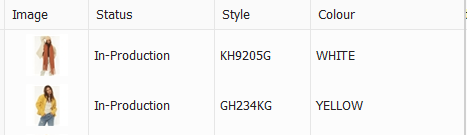
Image naming convention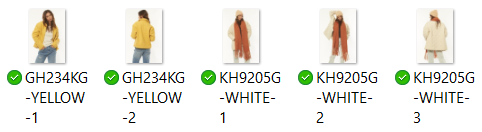
Tips
- Use one convention per batch. The Auto Link settings apply to every image in the run, so mixing Style and Job Number, or Colour Name and Colour Code, in one batch leaves some images unlinked.
- Match Sync exactly. Check the spelling of colour names against the style in Sync before you rename the files.
- Pick a separator that isn’t in your codes or colour names. If a colour is named
Navy-White, a-separator may split the name in the wrong place. Use a different separator for that batch. - If you have multiple images '1' will be the 'Hero' or first image on that product once imported into Sync
- Test linking 1 image in Sync Studio to confirm your files are named correctly before renaming or importing the full batch
- If you have multiple images for a single style use numerals ((1,2,3,4,5) at the end or your name with the same separator.